

Charity M²: owner guide (first look)
Charity M² is the web application a charity or not-for-profit uses day to day: donors, gifts, programs, volunteers and food distribution, in one place. This guide shows the first things an owner does: find your way around Home and the menu, and record a gift.
Charity M² runs in a web browser. There is no separate mobile app for it. The pictures were taken on a computer screen. The pictures show a made-up food bank, "Riverside Food Bank", with made-up donors. Your own organisation's name, menu and numbers will appear instead.
What you need
- A computer with a current web browser.
- Your organisation's Charity M² web address and your sign-in, both from the person who set up your organisation.
Home and the menu
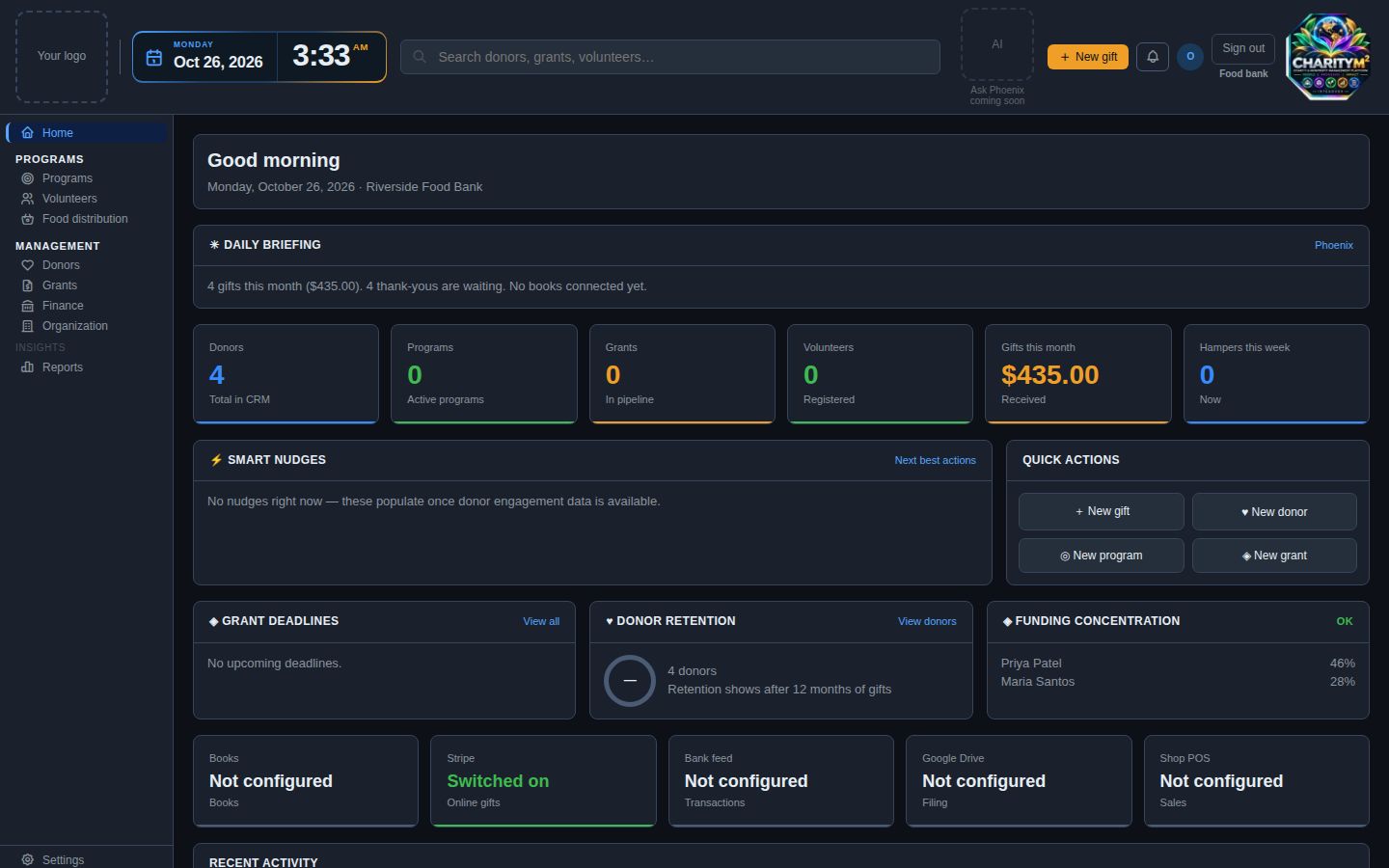
Home greets you and shows your organisation's name and today's date. Under the greeting are cards with the numbers that matter: Donors, Programs, Grants, Volunteers, Gifts this month and, for a food bank, Hampers this week. A number the system does not have yet shows as 0 or a dash.
The menu on the left follows the kind of organisation you chose when you signed up. For the food bank in the pictures it lists Home, Programs, Volunteers, Food distribution, Donors, Grants, Finance, Organization, Reports and Settings. A different type of organisation sees the sections that fit its work, and you can switch features on or off later.
- Open your Charity M² address. You land on Home: your organisation's name is at the top and the Donors and Gifts this month cards are below it.
- Look at the menu on the left and at the top bar. The menu lists your sections (for the food bank: Programs, Volunteers, Food distribution, Donors, Grants and Finance) and the top bar names the type of organisation you chose.
Record a gift
Use New gift (top right) to record a donation.
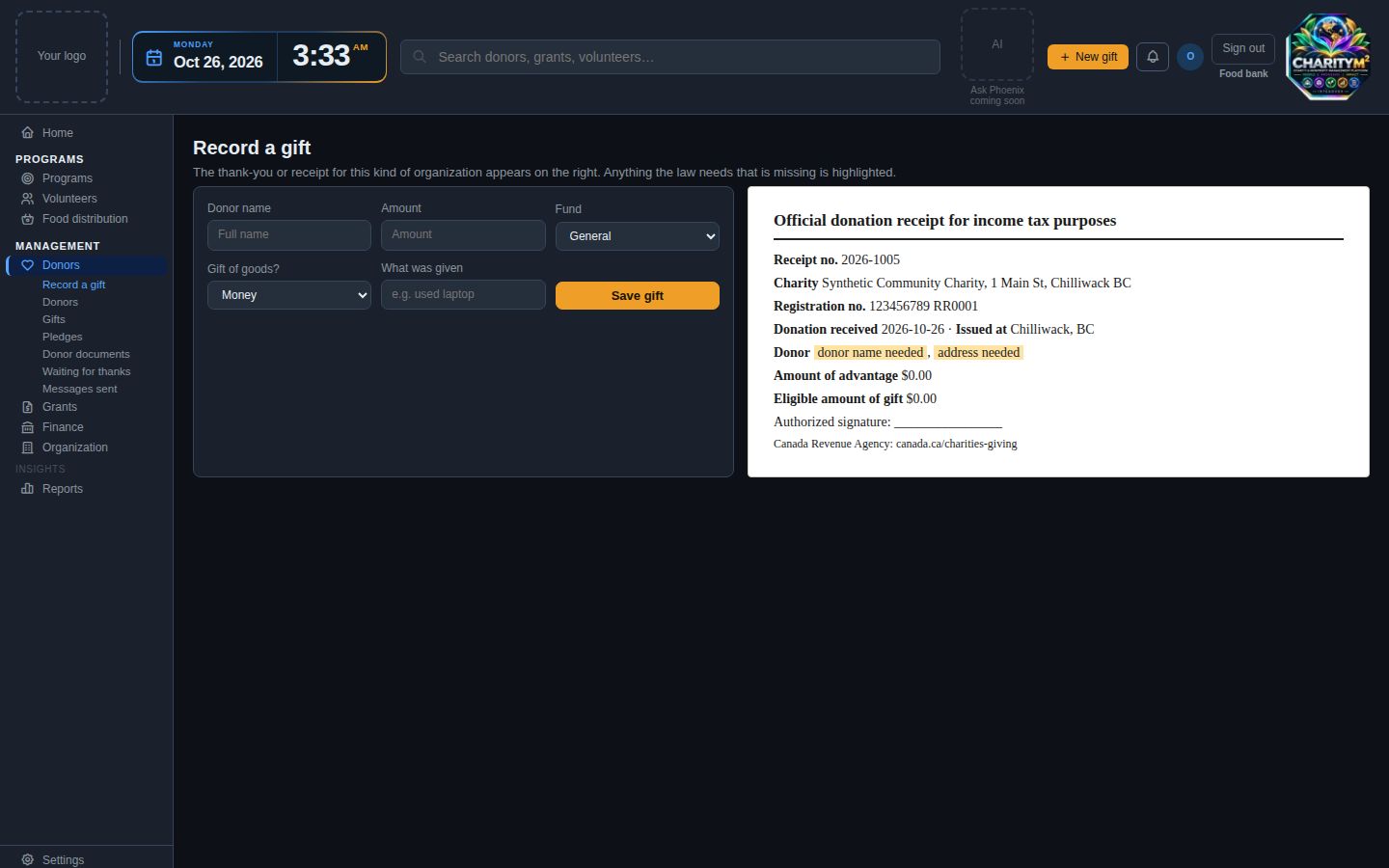
The form has the donor's name, the amount, the fund, whether the gift is money or goods, and a note. A preview of the thank-you or receipt wording for your kind of organisation appears on the right as you type. The wording in the preview has not yet been reviewed by an accountant, so check it with your own accountant before you rely on it. This guide does not cover issuing or sending receipts to donors.
- Click New gift at the top right. Record a gift opens, with the donor name and the amount empty.
- Click Save gift without typing anything. The page tells you it is not saved and why (for example, that the amount must be more than zero). Nothing is recorded.
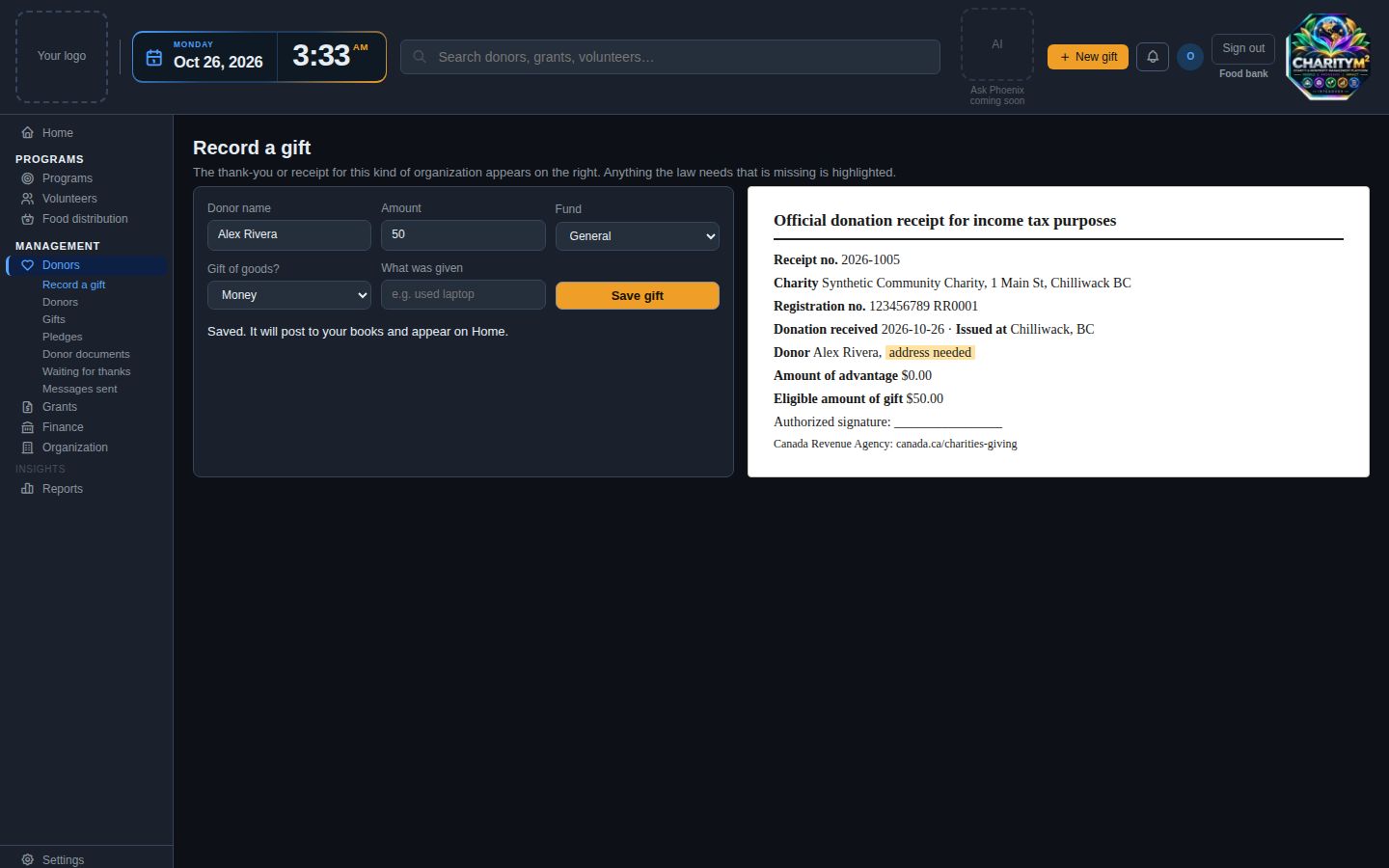
- Type the donor's full name and the amount (for example, Alex Rivera and 50), then click Save gift. The page says Saved.
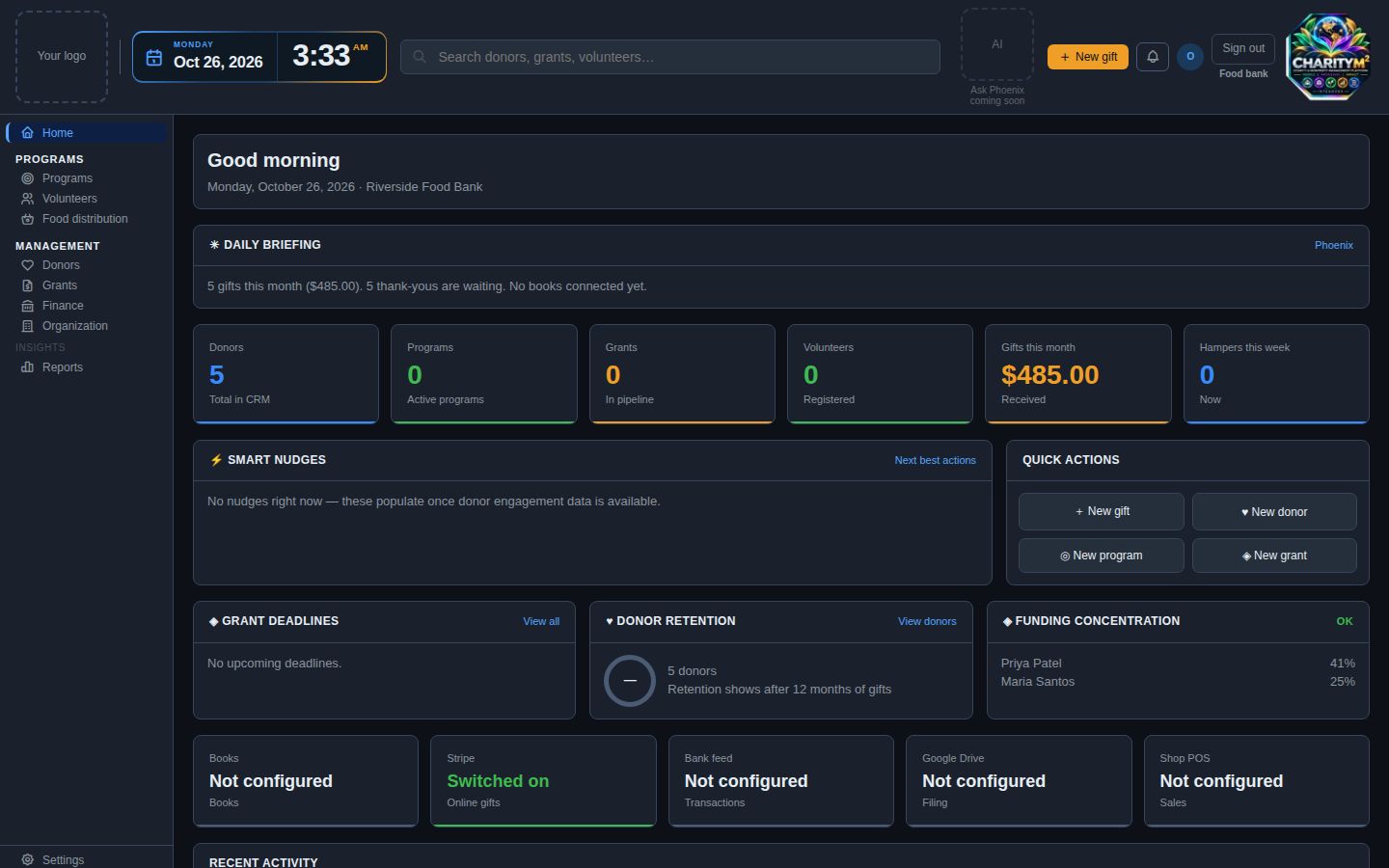
- Go back to Home. The Donors card has gone up by one and the sentence at the top counts the new gift in Gifts this month.
What this guide does not cover yet
Signing in for the first time, importing your existing donors, sending receipts to donors by email or as a PDF, and the assistant are not part of this guide. The assistant button is marked "coming soon" in the application. These sections will be added when those features are ready and checked on screen.